Firmware Flashing
How to flash the latest firmware to your device.
Firmware Flashing
Before setting up your device, you may want to ensure it has the latest firmware. You can flash your device at flash.hnl.cc.
OTA Flashing (On-Device, Requires Internet Access and a MicroSD Card)
- How to use: Open System → OTA in the WebUI, tap Check to look for updates, then tap Start OTA to begin.
- Behavior: The device downloads the updates for both chips, applies them, and reboots automatically when flashing completes.
Network: The device must have internet access to check for updates and download firmware. Ensure the device is connected to a network with internet access before starting OTA.
Important: OTA updates require a working microSD card in the device for downloading files and certain update paths. If no SD card is present, OTA will be unavailable. Insert and mount a microSD card before attempting an OTA update.
Using the Web Flasher
Browser Compatibility: The web flasher requires a browser that supports WebSerial API. Supported browsers include Chrome, Edge, and Opera. Firefox and Safari are not currently supported.
1. Preperation
- Open flash.hnl.cc in your webserial-supported browser
- Plug in one side of your device (either the ATK or RGB side)
Connection
2. Connection
- Click the “Identify Device” button and follow your browsers prompts to select the correct device (name may differ between browsers and Operating Systems)
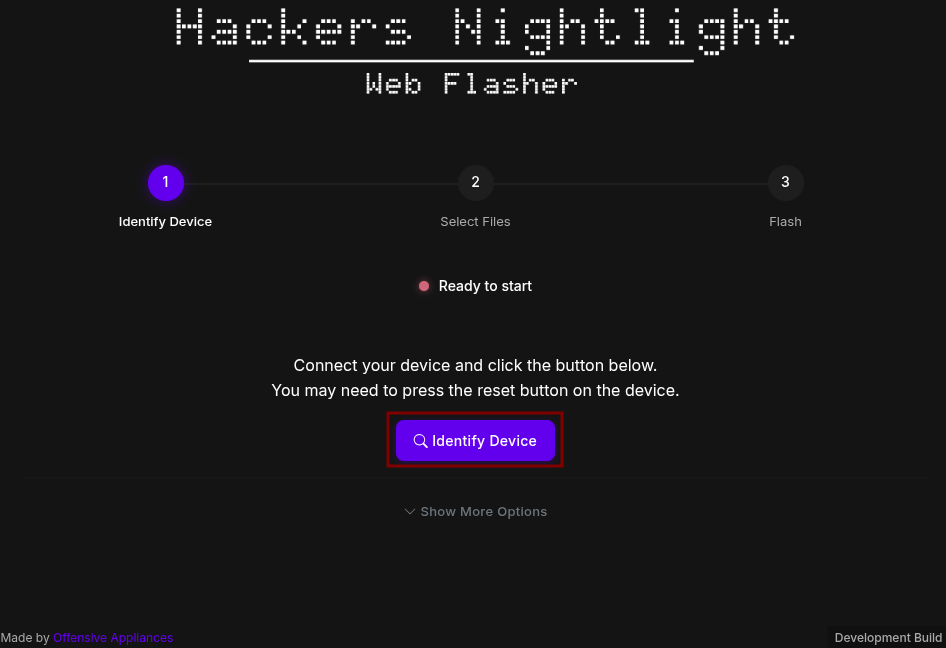
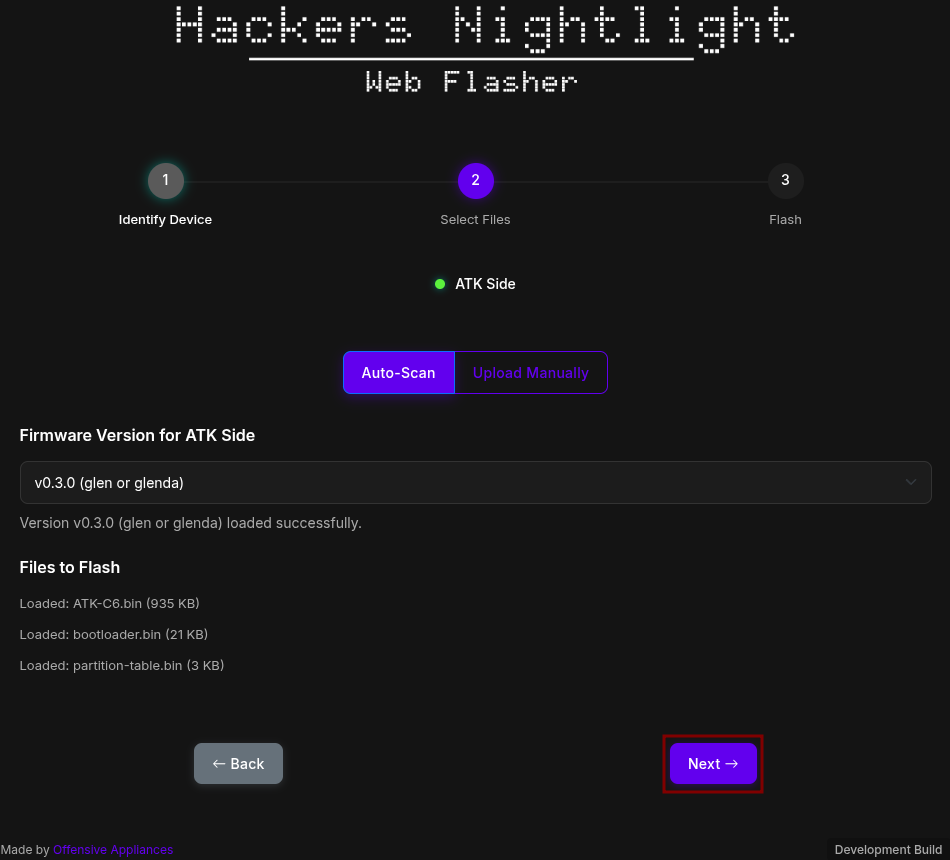
3. Selection
- The flasher will automatically detect which side is being flashed, and suggest the appropriate firmware for flashing. After verifying the version you would like is selected, press next to continue
4. Flashing
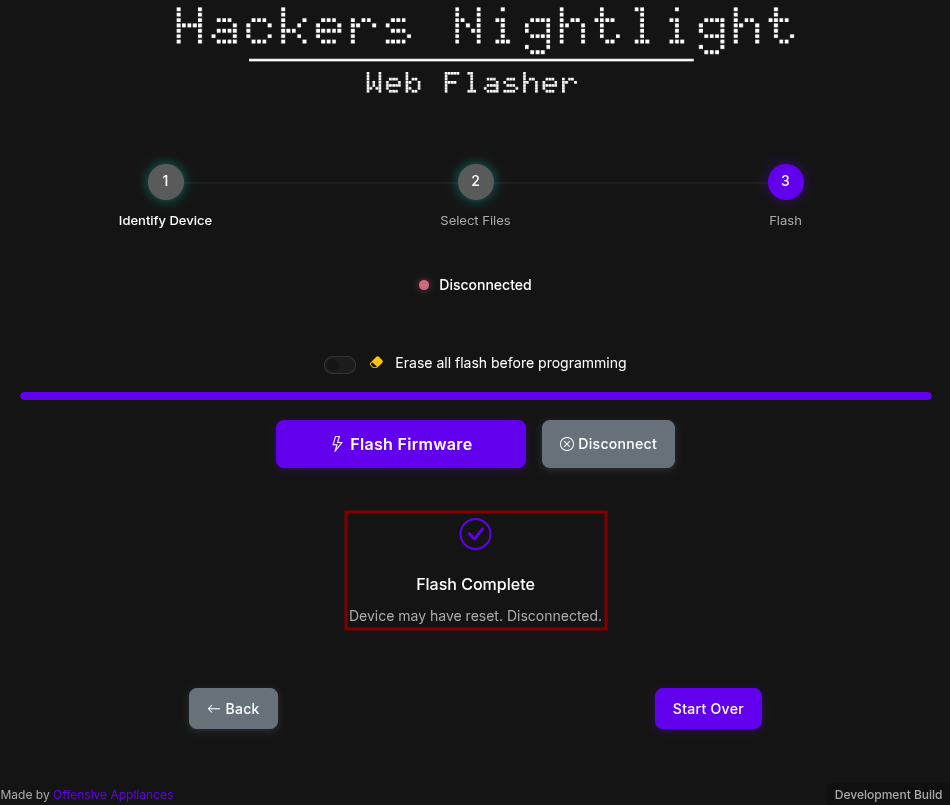
- Click “Flash Firmware” and wait for the flash to complete
- If you see a screen indicateing the Flash is complete like below, the flash was a success!
Using the Python Flasher
When to use: Use the Python flasher if the web flasher fails or your browser doesn’t support WebSerial.
Before you run:
- Install Python 3.8+ and use a data-capable USB cable.
- On Windows, install the Silicon Labs CP210x driver if needed. On Linux/macOS you may need serial permissions or
sudo.
Run:
python HNL_Flasher.pyOverview: The script installs missing Python packages, detects the device, downloads the correct firmware into
./firmware/, prompts you to confirm flashing, writes the firmware, and logs output tologs.txt.Quick fixes:
- No device found: try a different USB cable/port and check drivers.
- Permission errors: run with
sudoor add your user to the serial group (e.g.,dialout). - Flash fails: check
logs.txtforesptooloutput, ensure device isn’t used by another program, and retry.
Tip: Keep the device connected until flashing finishes; use the web flasher at
https://flash.hnl.ccif you prefer a GUI.